
Quick answer: set up your workspace once (logo, tax, deposit, terms), add a customer, build the estimate from a template or your saved items, and choose Share privately. Your customer reviews the PDF and approves and signs it, asks for changes or declines. SprigDeal tells you right away and sends a follow-up if they go quiet. Each step below shows the real screen with sample data.
Want to click along? Open the interactive preview in another tab. It uses sample data and nothing is saved.
1. Create your account and set up your workspace
- Go to Create your account, enter your business name, email and a password, and accept the Terms.
- Open the verification email we send and confirm your address. You need a verified email to buy a plan.
- Sign in. The Set up your workspace screen asks for your business logo (optional), business name, primary service, country, currency, default tax and deposit, how many days to wait before following up, your phone and your default terms. Choose Finish setup.
- Open Account & Billing and choose the monthly or yearly plan. Creating and editing customers, estimates and follow-ups starts once the plan is active.
2. Add your logo and business settings
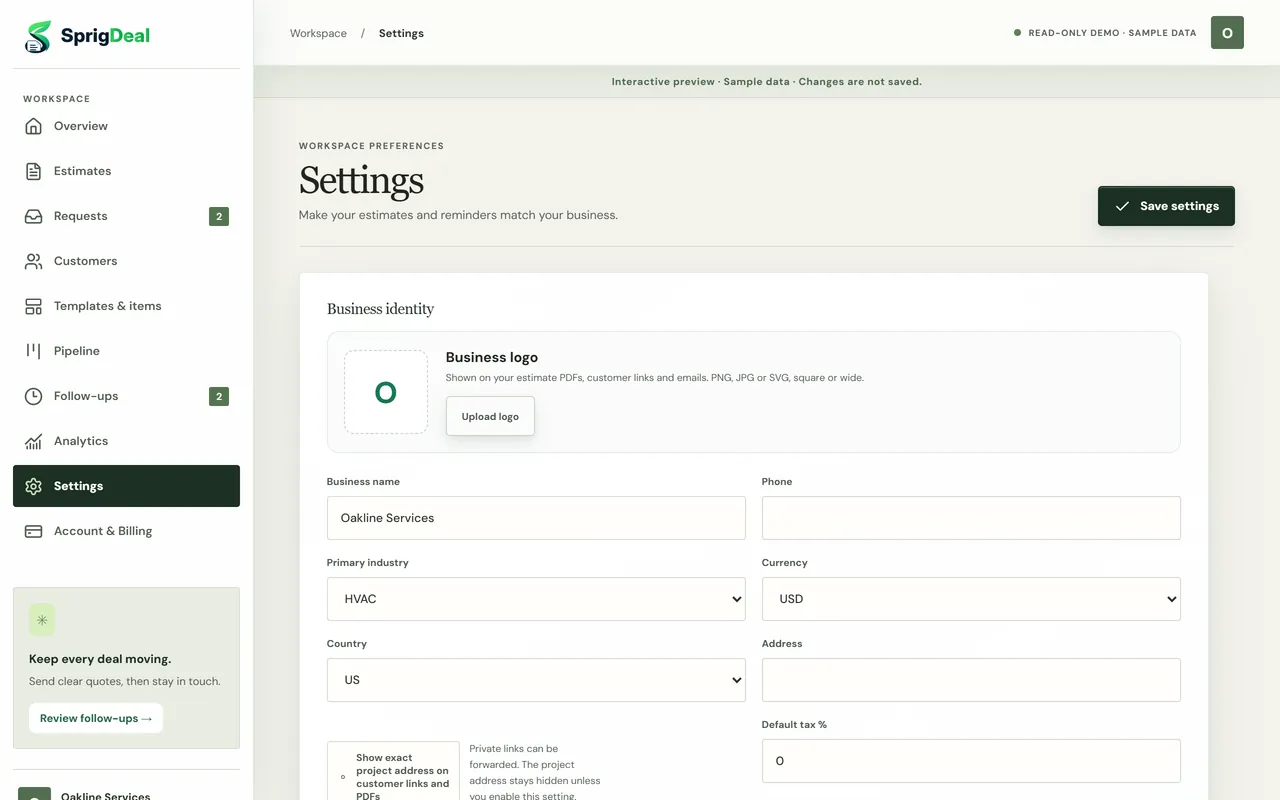
Open Settings whenever you need to change something. Settings are saved with Save settings at the top; the logo saves as soon as you upload it.
- Business logo: appears on your PDFs, on the page your customer opens and in the emails they receive. PNG, JPG or SVG; SprigDeal resizes it for you.
- Business details: name, phone, address, primary industry, currency and country.
- Defaults: tax %, deposit %, follow-up delay in days and your terms. New estimates start with these values, and you can change them on any estimate.
- Project address: stays hidden on customer links and PDFs unless you tick Show exact project address, because links can be forwarded.
- Services offered: the trades you work in. They also become the choices on your estimate request form.
3. Add your customers
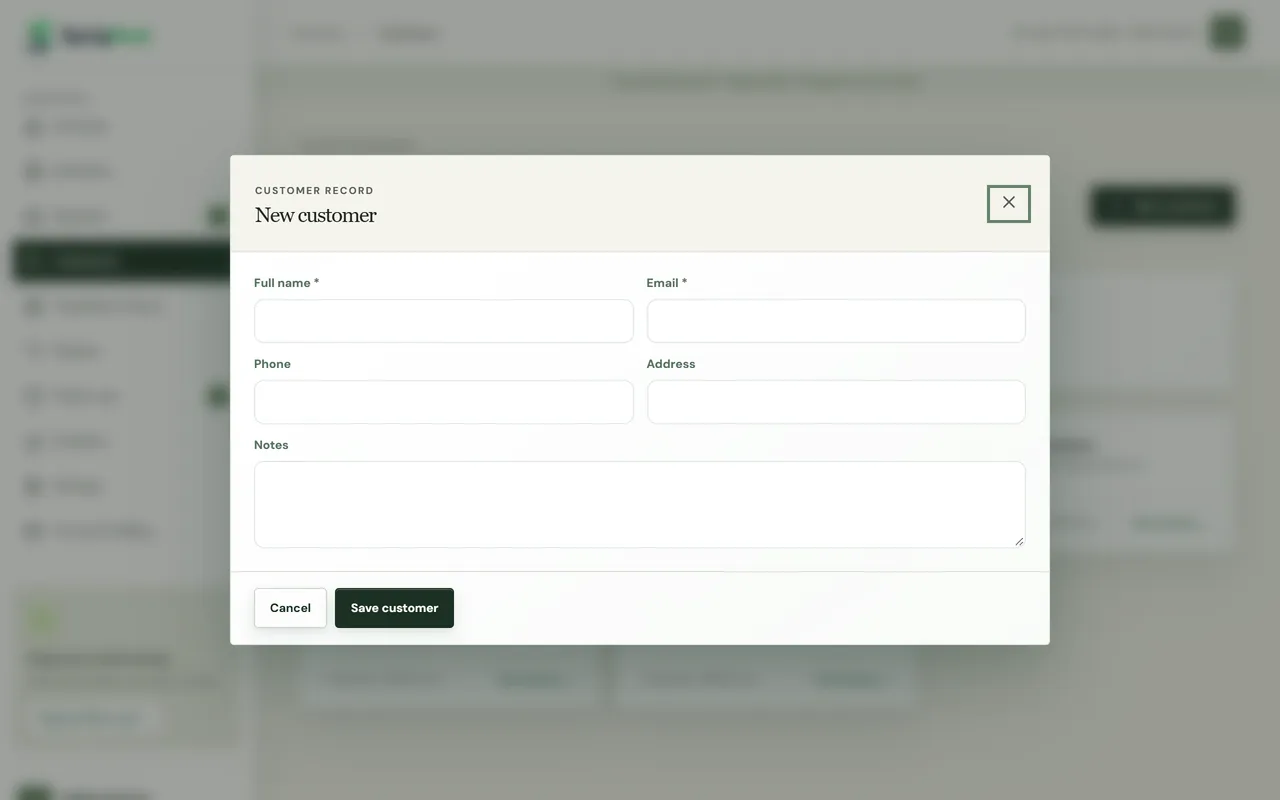
- Open Customers and choose New customer.
- Enter the full name and email (both required), plus phone, address and private notes if you like. Choose Save customer.
- Click a customer card any time to edit the details or see their history. Customers who send a request through your online form are added for you (step 9).
4. Save templates and items you quote often
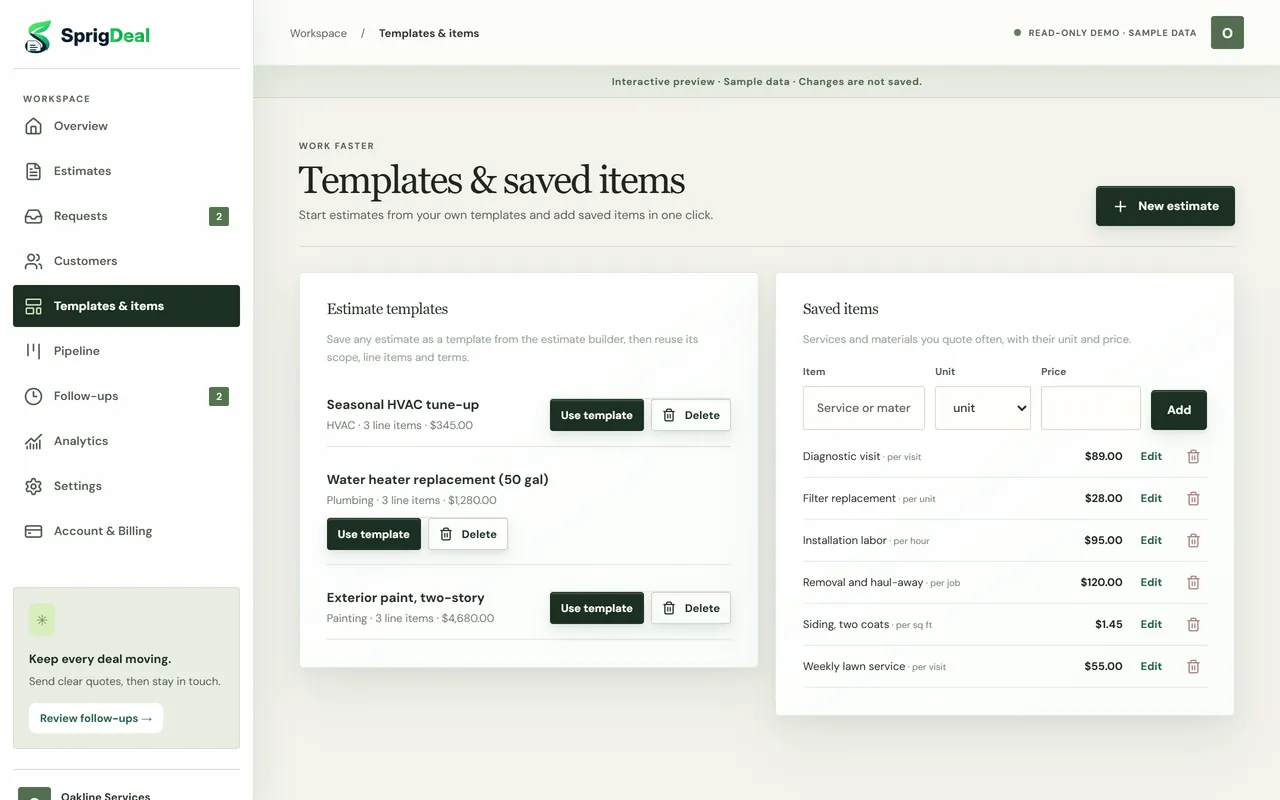
Open Templates & items. It saves time on every estimate:
- Estimate templates: in the estimate builder, choose Save as template and give it a name. The template keeps the title, trade, scope, line items, exclusions, terms, tax, discount and deposit. Use it later with Use template, or pick it in the builder under Start from a template.
- Saved items: services and materials with a unit and price, such as “Diagnostic visit, per visit, $89”. Add them here with Add, or save any line from the builder with the bookmark icon next to it. Choose Edit to change a price.
Every trade also has a starter estimate, so you are never starting from a blank page.
5. Create an estimate
- Choose New estimate (on a phone, the + button at the bottom).
- Client & service: pick the customer and the trade. Optionally pick one of your templates. Write the project title, the scope of work, the project address and any exclusions.
- Line items: each line has a description, quantity, unit and unit price. Use + Saved item to add a saved price, Add item for a new line and the bin icon to remove one.
- Dates & terms: how long the price is valid, the follow-up date and your terms.
- Estimate summary: set discount, tax and deposit percentages. Totals update as you type.
- Choose Save estimate. The estimate is saved as a draft; nothing is sent yet.
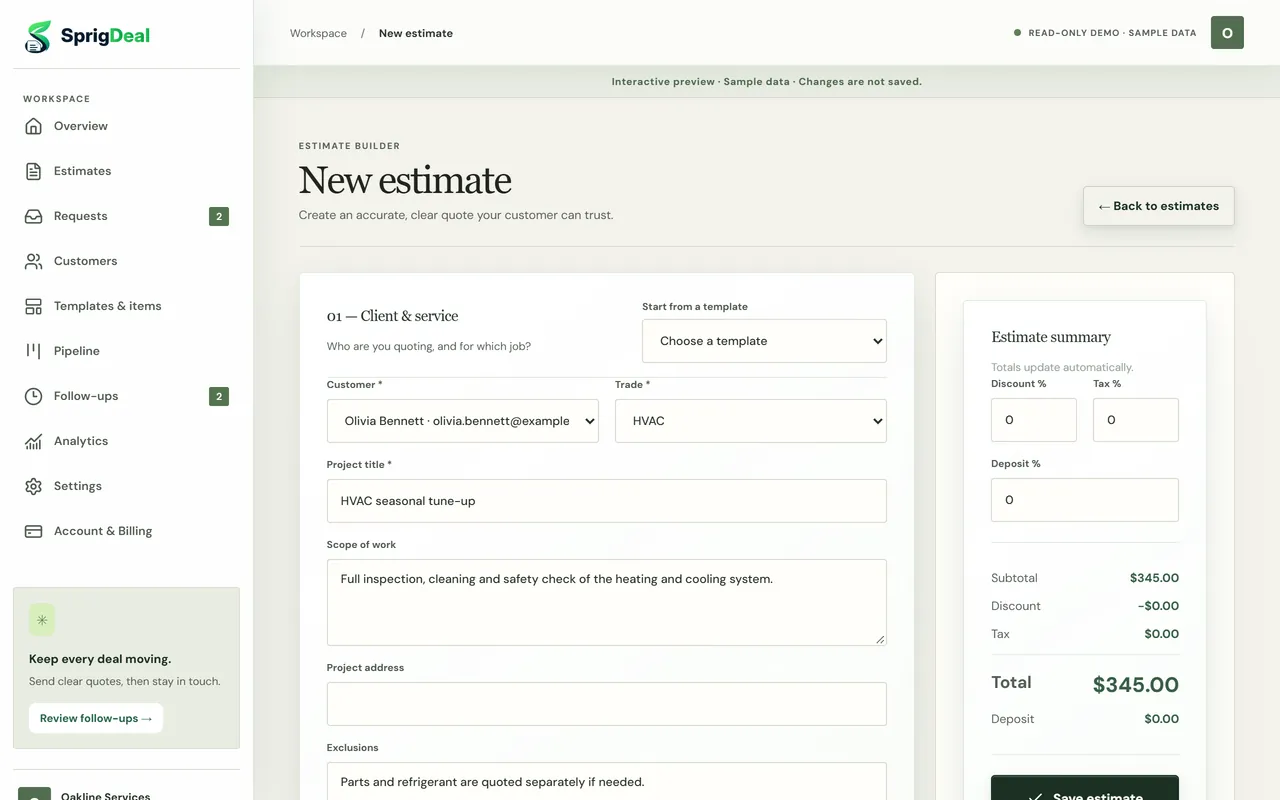
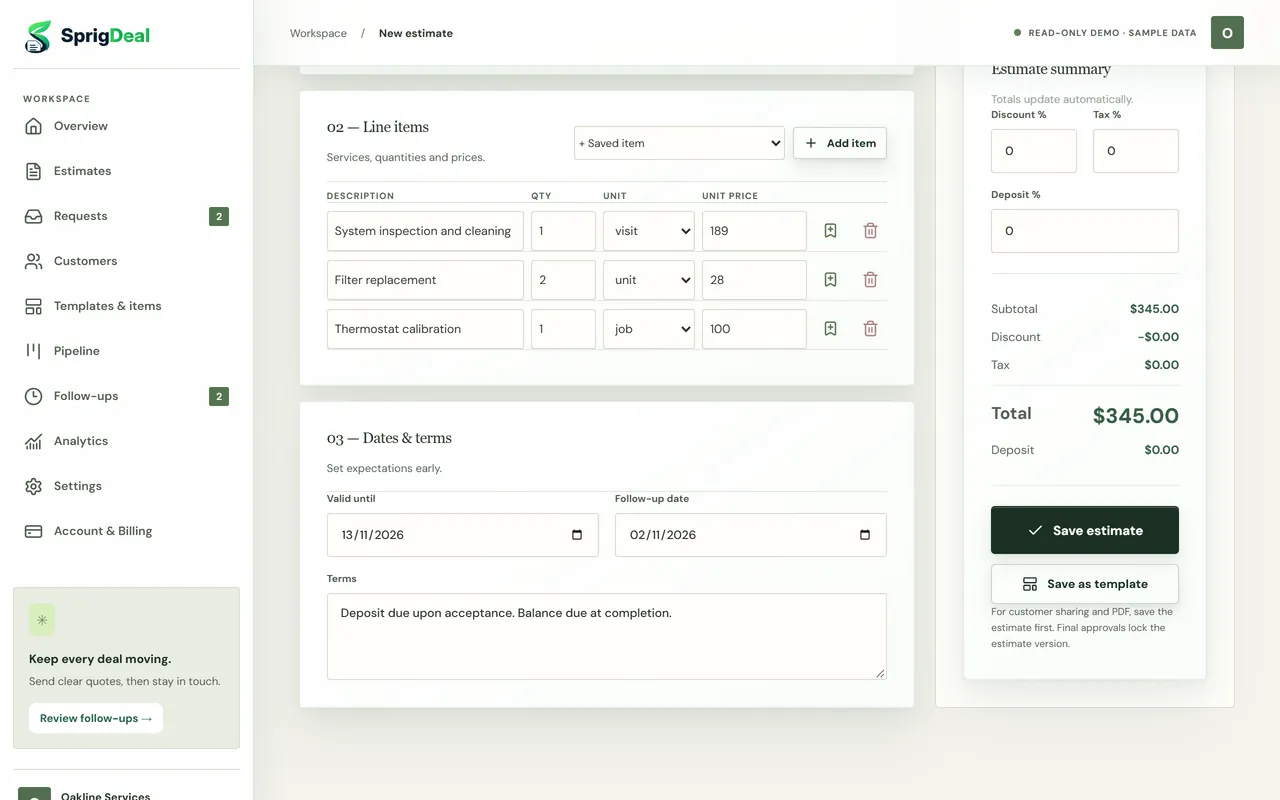
If you see an error when saving: every line needs a description, a quantity above 0 and a price of 0 or more. The message names the line to fix, for example “Line 2: quantity must be more than 0”. Completely empty lines are removed for you.
6. Send the estimate
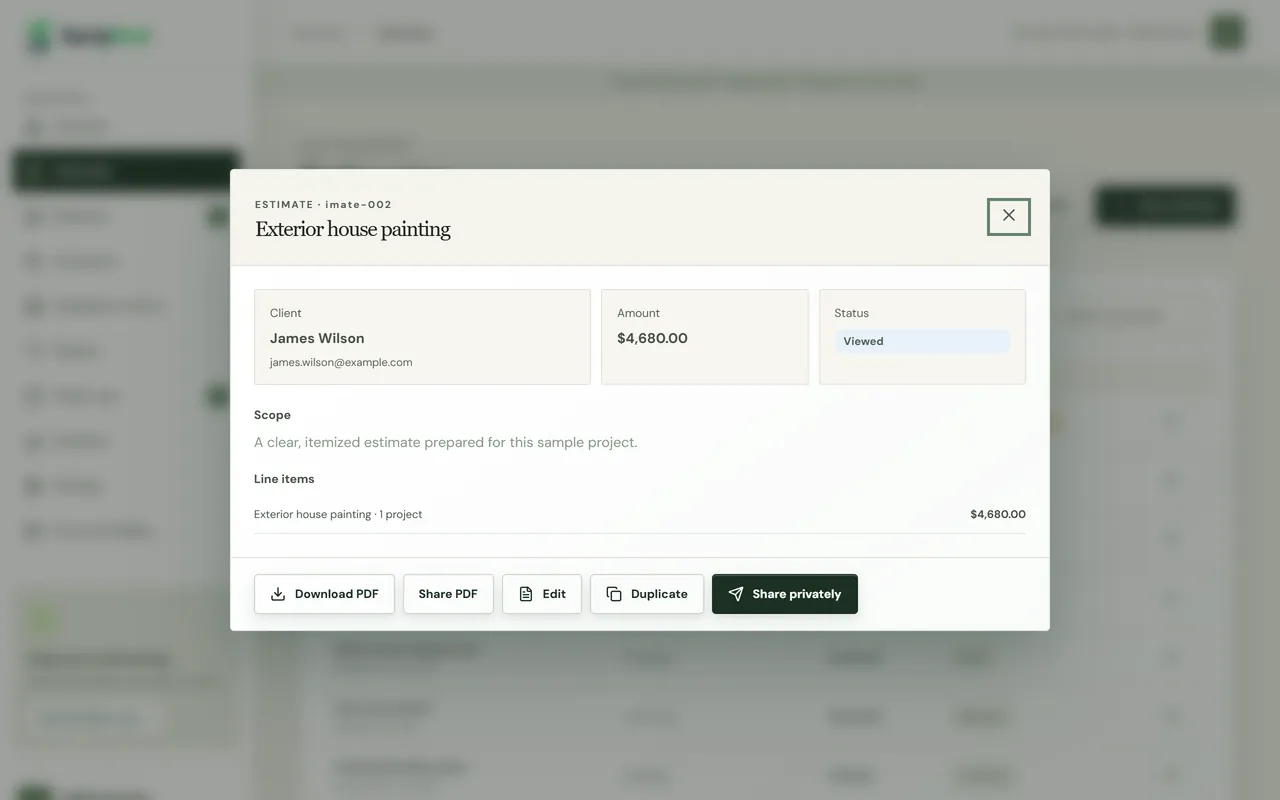
Open the estimate from Estimates or the Pipeline to see its details and options:
- Share privately emails your customer a private link to the estimate. A copy of the link appears so you can also paste it into a text message. The link works for 30 days, and replies to the email go to your business email.
- Download PDF saves the estimate as a PDF with your logo. Share PDF opens your phone’s share menu where available.
- Edit changes a draft or open estimate; sharing again replaces the old link. Duplicate copies it for a similar job.
Sharing also schedules one follow-up email for the follow-up date (step 10).
7. What your customer sees
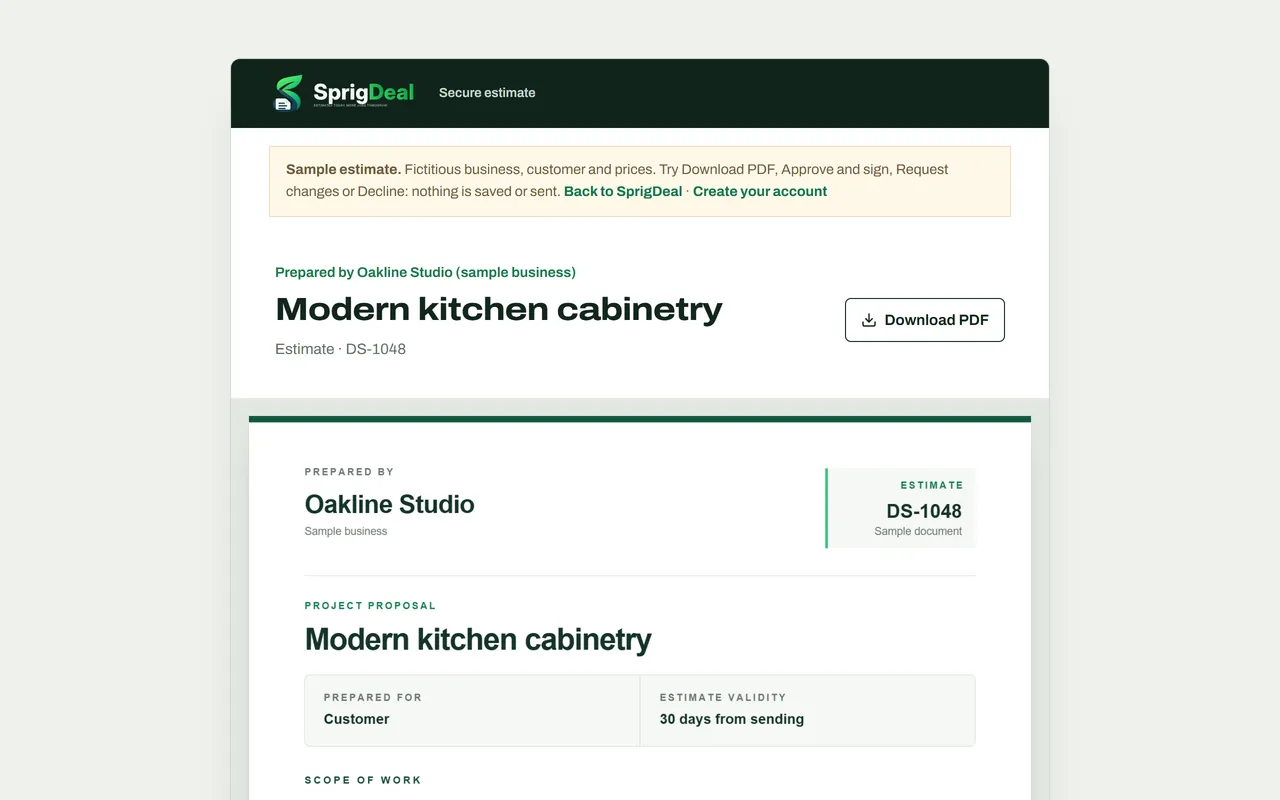
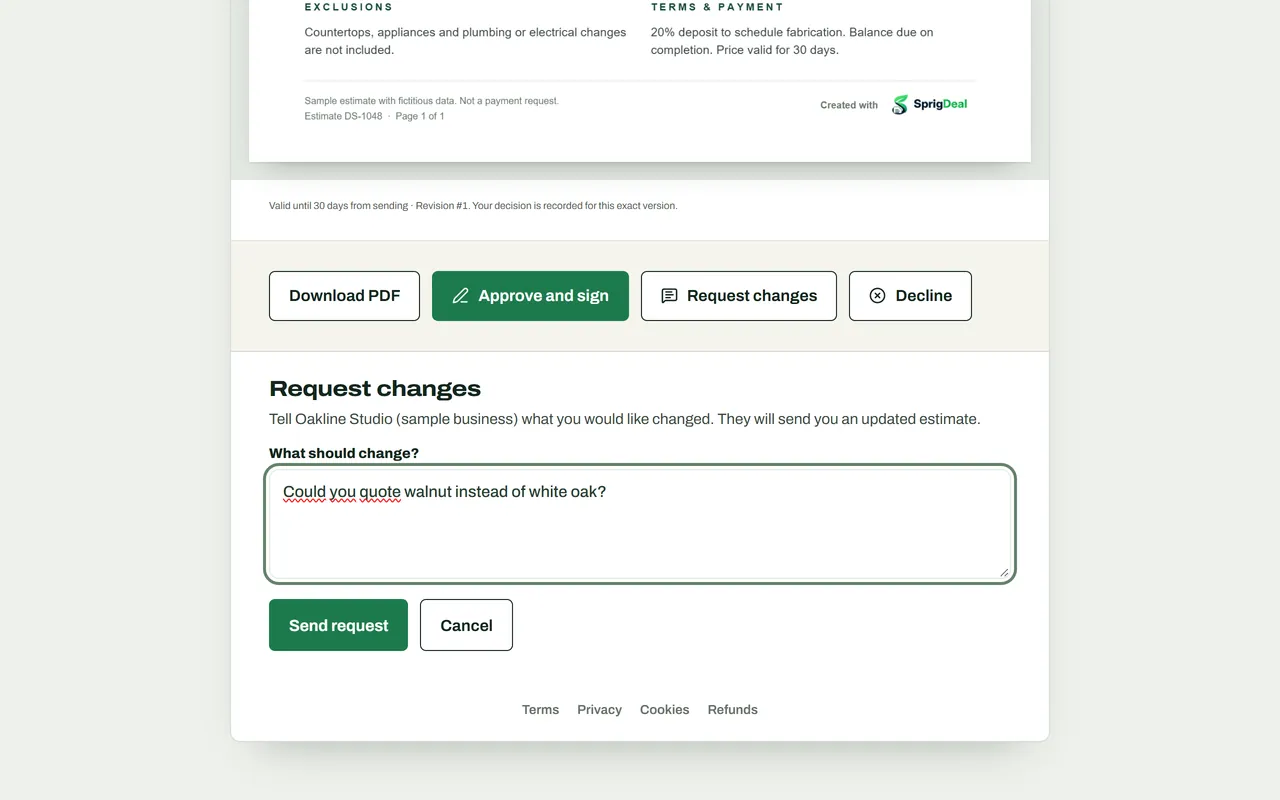
Your customer opens the link on any device, with no app or account. They see your logo and the estimate PDF itself, page by page, with a Download PDF button. Below it they choose:
- Approve and sign: they type their full name and sign with a finger, mouse or pen, or choose Type my signature.
- Request changes: they write what they would like changed.
- Decline: with an optional reason.
Opening the link changes the estimate to Viewed, so you know they have seen it. Try it yourself on the sample estimate.
8. Handle approvals, change requests and declines
You get an email as soon as the customer responds, and any pending follow-up is cancelled.
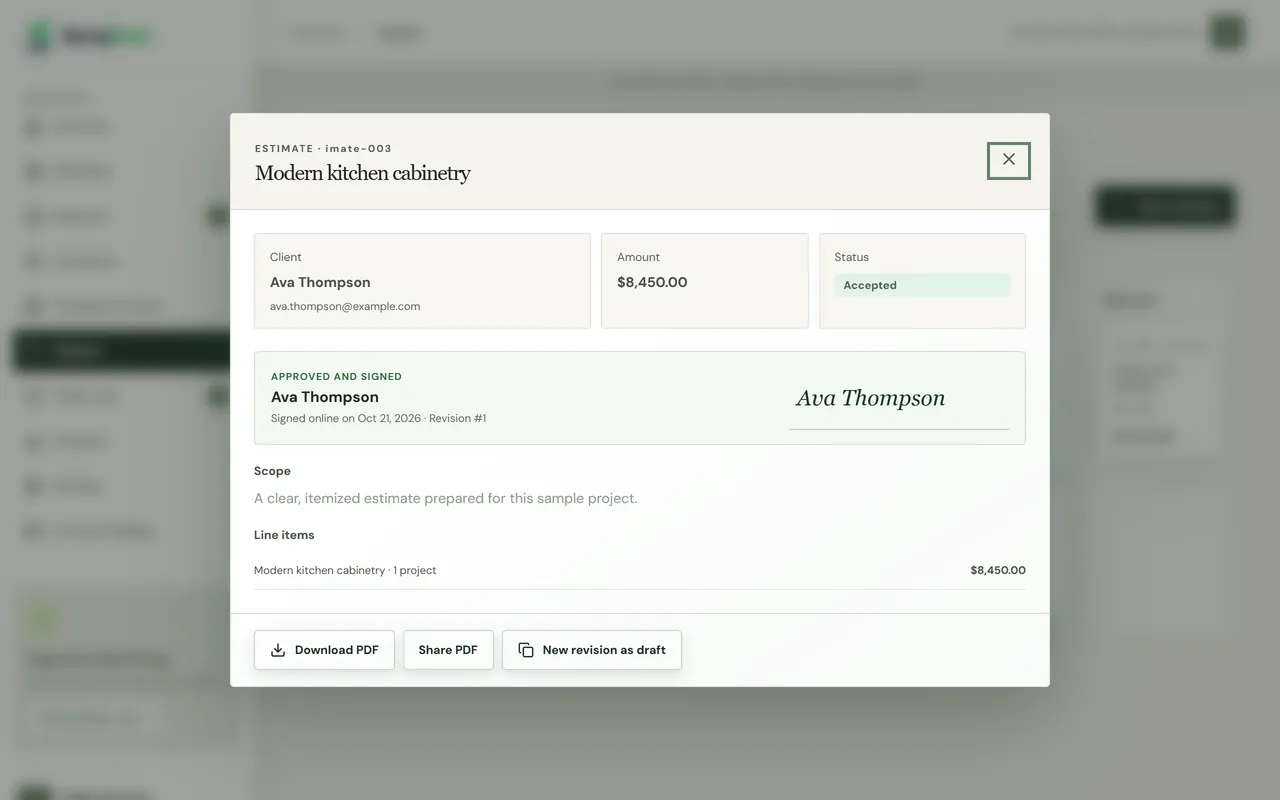
- Approved: the estimate moves to Accepted. Its details show who signed, when, the revision and the signature. Download the PDF and the signature appears at the end, under Approved and signed. Approved estimates are locked; to change the price, choose New revision as draft.
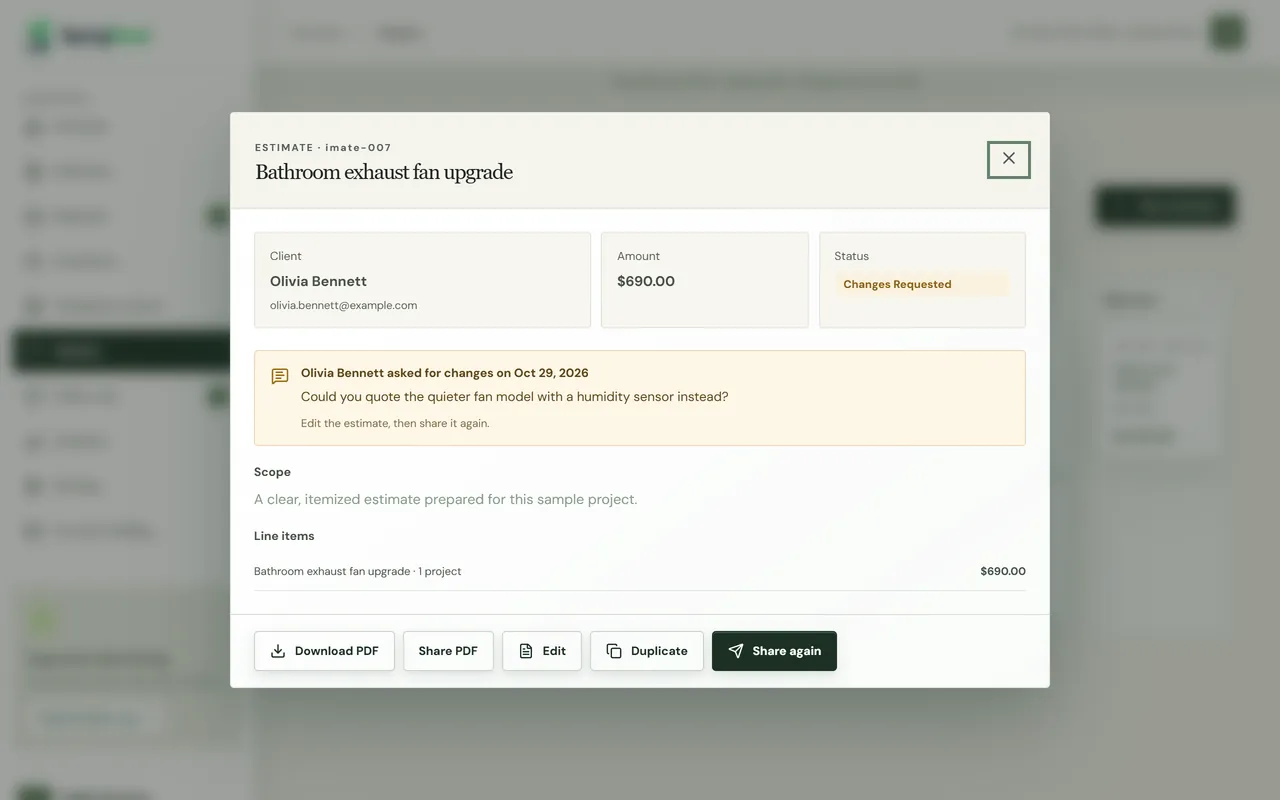
- Changes requested: the estimate moves to Changes requested and shows the customer’s note. Choose Edit, save the revision, then Share again. The customer gets a new link to the updated version.
- Declined: the estimate moves to Declined, with the customer’s reason if they gave one.
9. Take estimate requests online
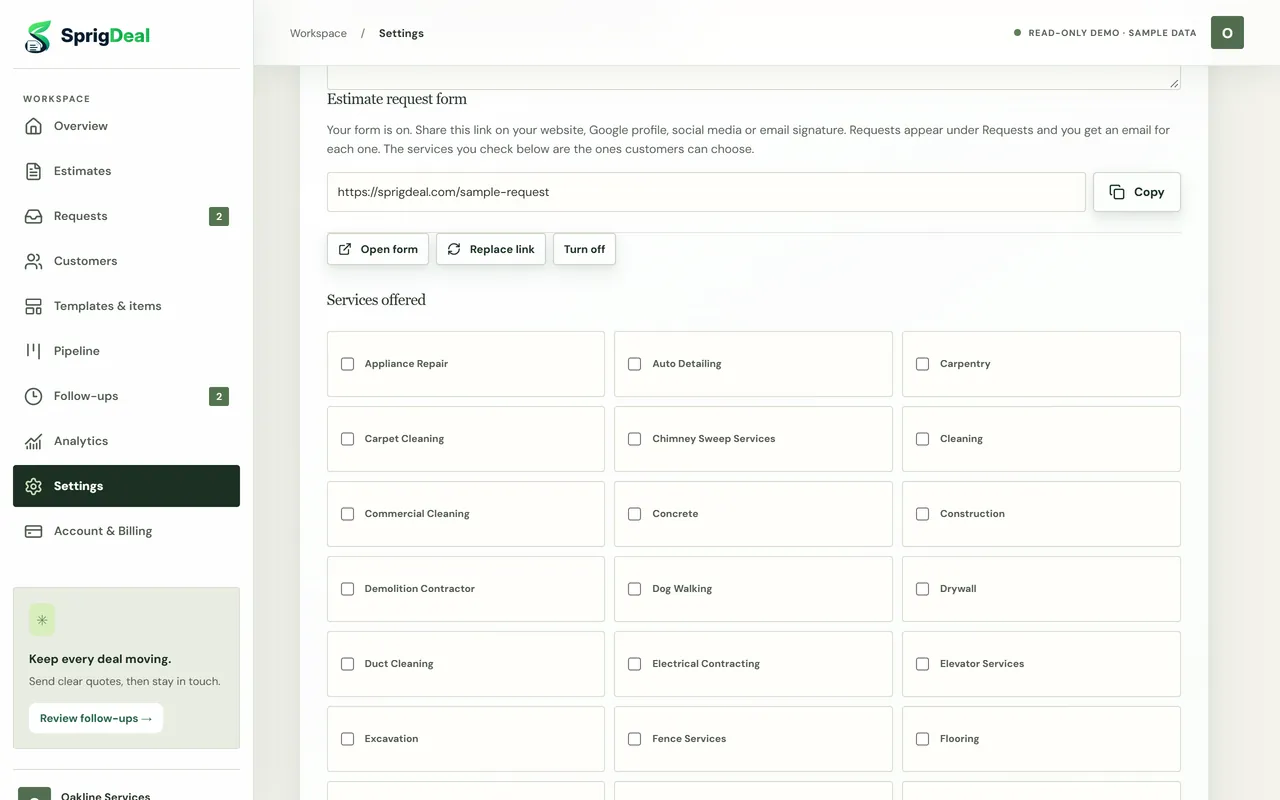
- In Settings, under Estimate request form, choose Turn on request form.
- Choose Copy and put the link on your website, Google Business Profile, social media, email signature or a QR code.
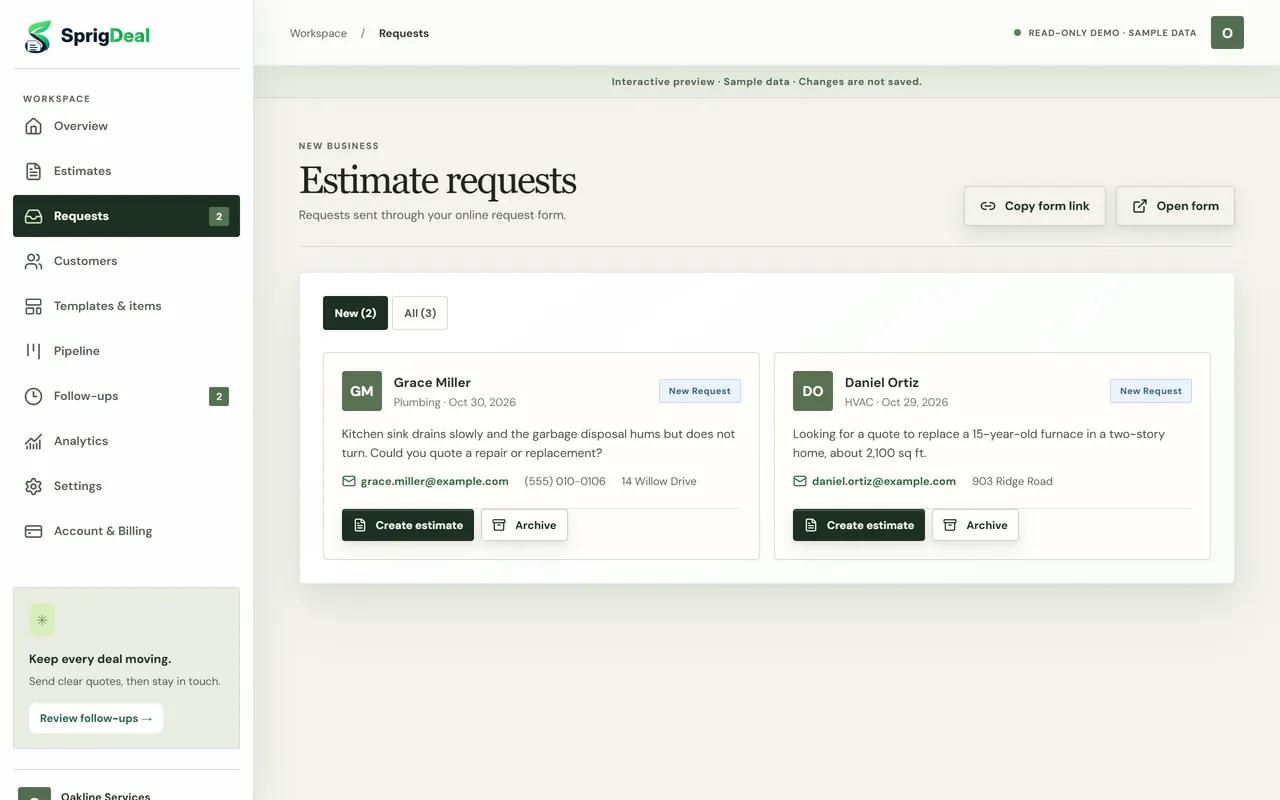
- Customers fill in their name, email, phone, job address, the service and a description. You get an email for each request, and it appears under Requests.
- Choose Create estimate: SprigDeal adds the person as a customer (or finds them by email) and opens a new estimate with the service, description and address filled in. Use Archive for requests you will not quote.
You can Turn off the form at any time, or Replace link so the old link stops working. See the sample request form.
10. Follow up on open estimates
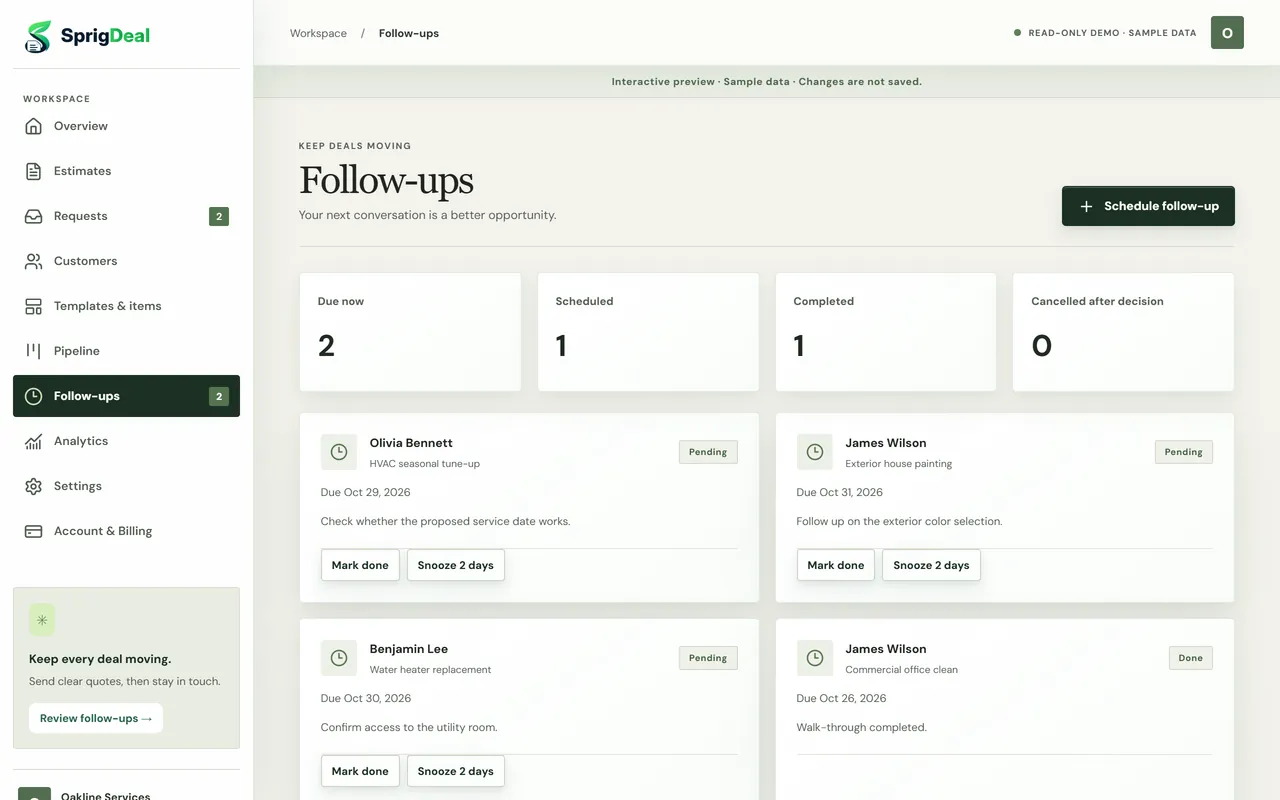
- When you share an estimate, SprigDeal schedules one follow-up email for its follow-up date (by default, the delay from your settings).
- If the customer has not responded by then, they receive a short, polite reminder with the same link. If they respond first, the follow-up is cancelled automatically.
- In Follow-ups, see what is due now and scheduled. Choose Mark done after a call, Snooze 2 days to wait, or Schedule follow-up to add one for any open estimate.
11. See a customer’s full history
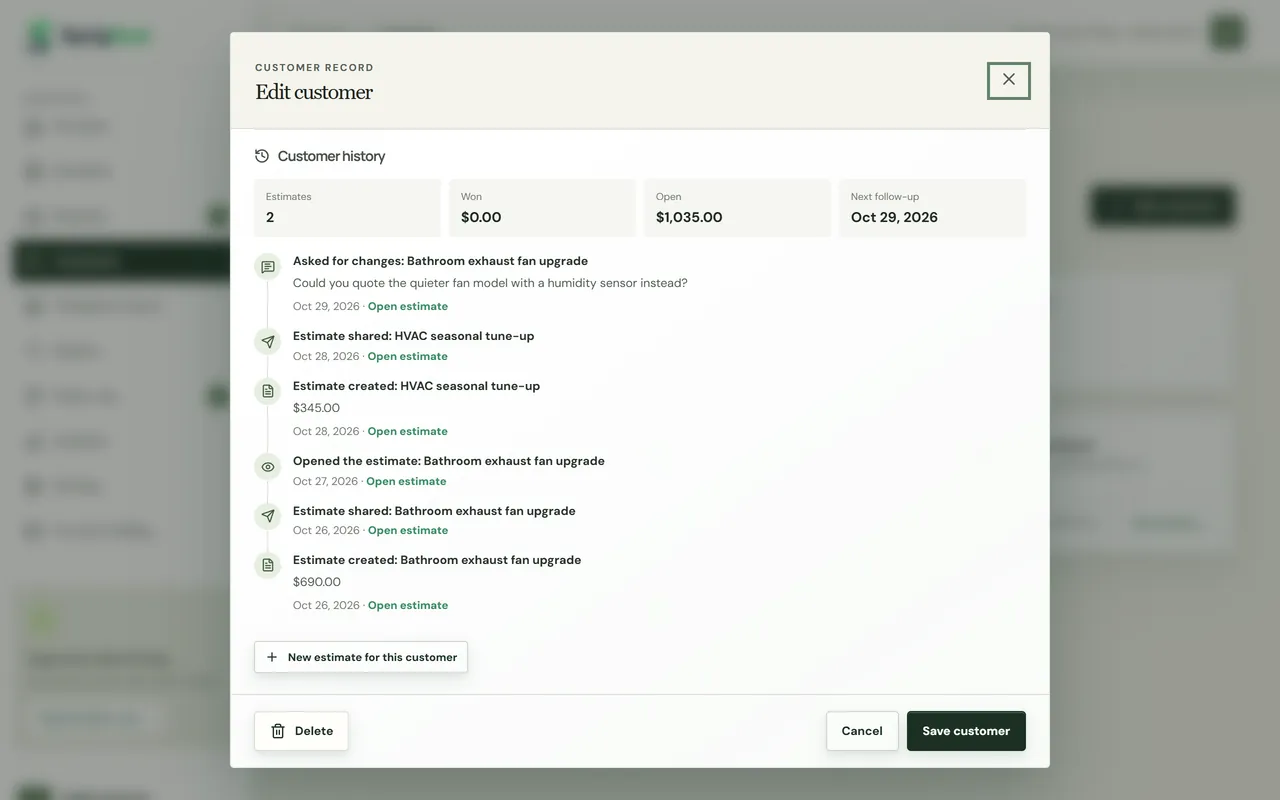
Click any customer under Customers. Below their details you see how many estimates they have, how much you have won with them, what is still open and their next follow-up. The timeline lists their requests, every estimate you created and shared, when they opened it, approvals with signatures, change requests, declines and completed follow-ups. Choose Open estimate on any line, or New estimate for this customer.
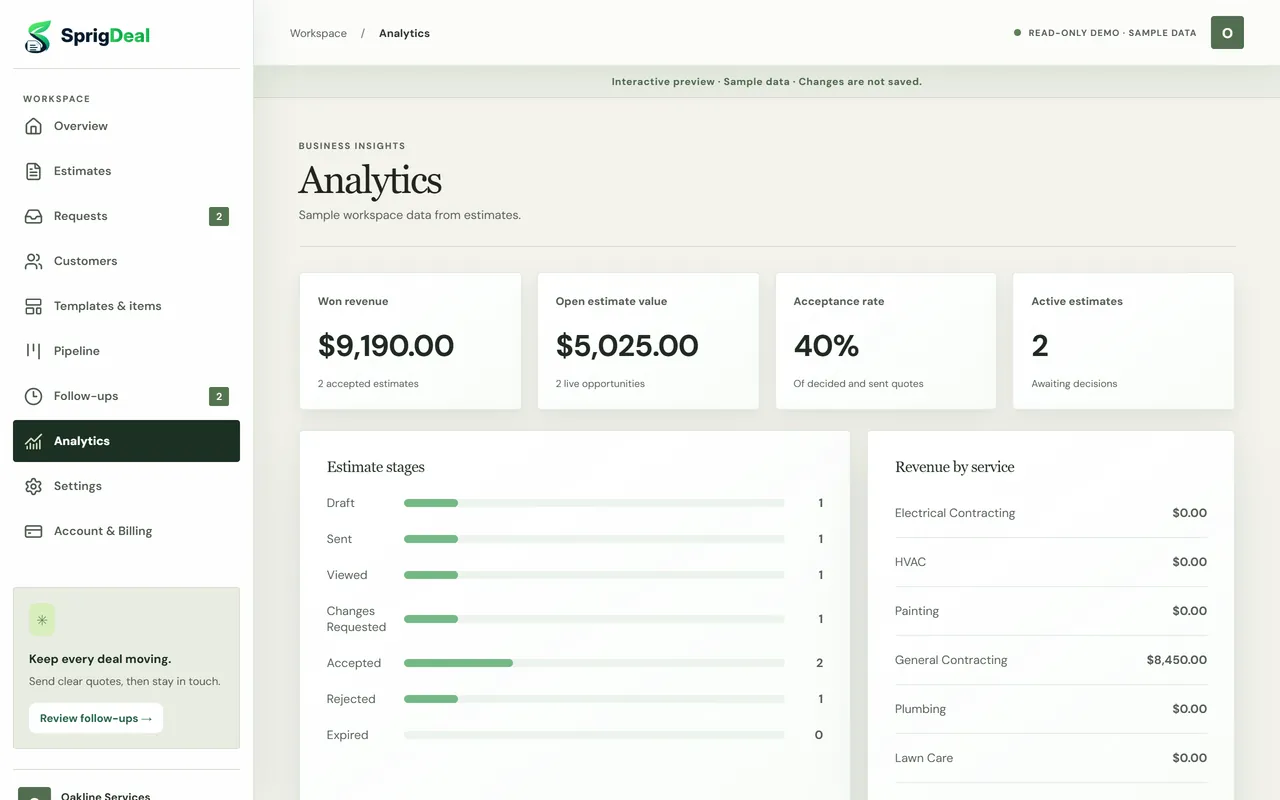
12. Track everything: pipeline, estimates and analytics
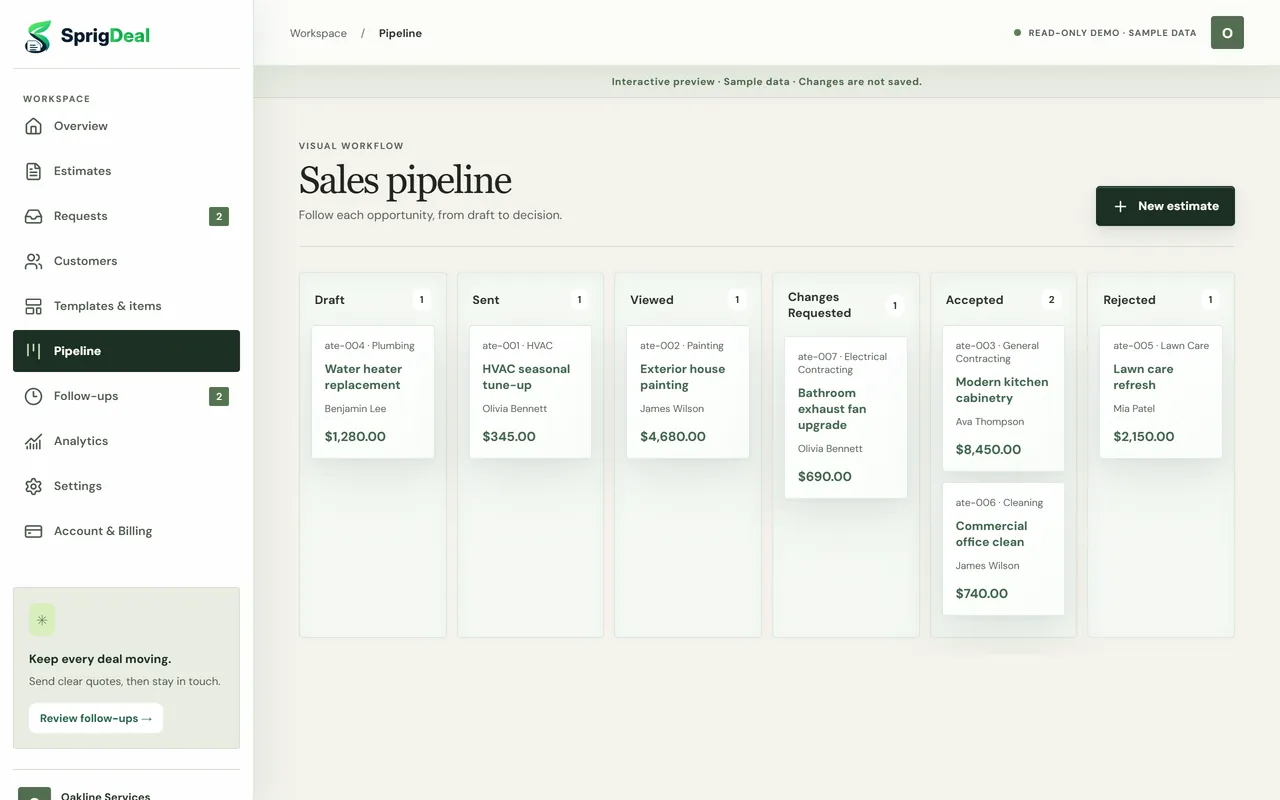
- Pipeline: every estimate in a column by status: Draft, Sent, Viewed, Changes requested, Accepted and Rejected.
- Estimates: filter by status or service, search by title or customer, and choose Export CSV for a spreadsheet.
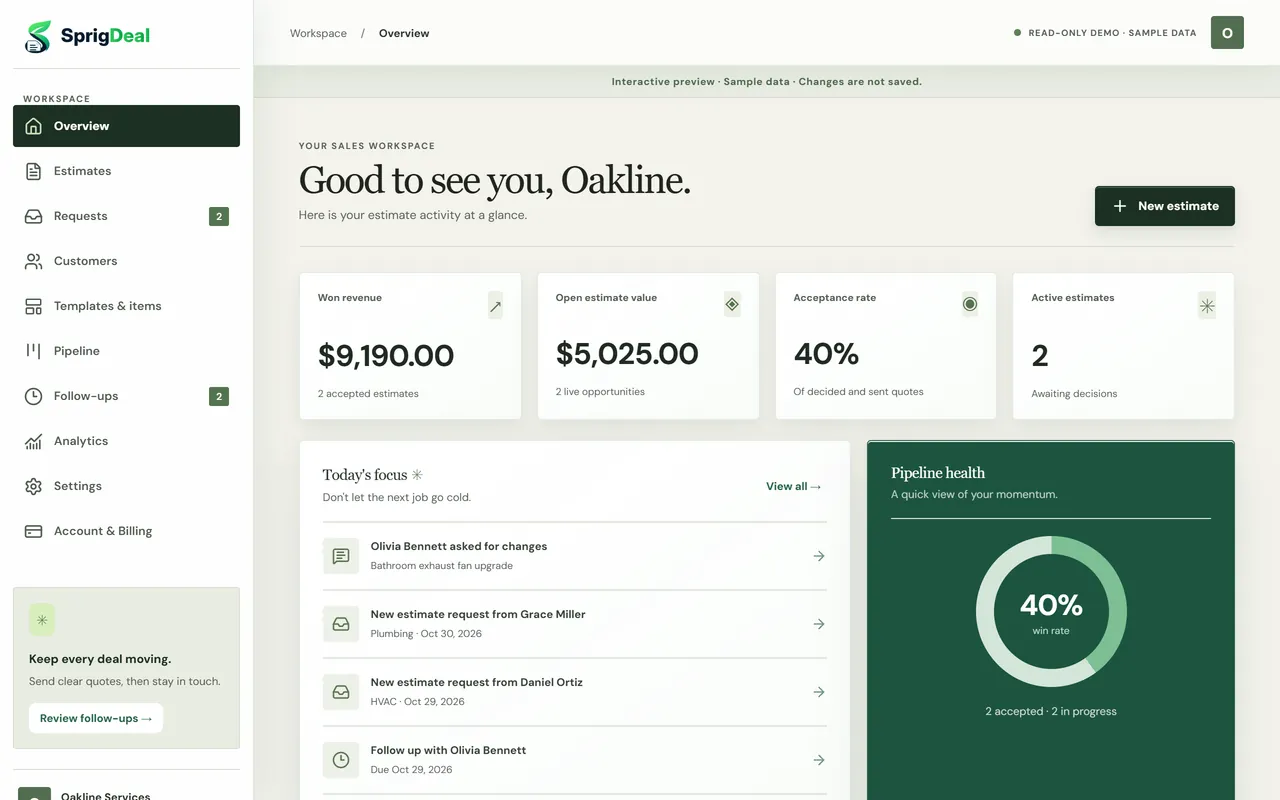
- Overview and Analytics: won revenue, open estimate value, acceptance rate, estimates by stage and revenue by service.
13. Manage your plan and account
- In Account & Billing, choose Manage subscription & invoices to update your payment method or download invoices through Paddle, our payment provider.
- Cancel subscription stops renewals; you keep full access until the end of the period you paid for, and you can choose Keep subscription before then. See the refund policy.
- Delete account permanently removes your workspace and data. It needs a recent sign-in and asks you to type DELETE.
Questions? Write to support@sprigdeal.com.
Frequently asked questions
Why does SprigDeal say “Line 2: quantity must be more than 0”?
Every line on an estimate needs a description, a quantity above zero and a unit price of zero or more. The message tells you which line to fix. Completely empty lines are removed automatically when you save.
Can I use SprigDeal on my phone?
Yes. SprigDeal works in the browser on phones, tablets and computers. On a phone, use the bar at the bottom of the screen for Home, Estimates, New, Follow-ups and More.
What happens if my customer asks for changes?
The estimate moves to Changes requested and you get an email with their note. Open the estimate, choose Edit, save the revision and choose Share again. The customer receives a new link to the updated version.
Can I try SprigDeal before paying?
Yes. The interactive preview on the homepage uses sample data, and the sample estimate and sample request form show exactly what your customers see. Nothing you do there is saved.